In this article
Accessible transactional emails keep verification codes, receipt totals, and primary actions available as text, with clear labels, appropriate structure, and sufficient contrast. Test them with images disabled, enlarged text, and a screen reader so recipients can complete the task in the clients they use.
A message that looks polished in a screenshot can still fail when someone tries to copy a code, check an invoice, or reset a password. Use accessibility as an acceptance criterion for each task, starting with the information the recipient needs.
Resend’s May article, 6 Tips for Accessible Emails, draws attention to common structural problems. Its underlying source, the Email Markup Consortium’s 2026 accessibility report, documents widespread failures involving language, layout tables, and headings. The practical opportunity is to fix your reusable components so the improvement reaches every message built from them.
Define the task before reviewing the design
Write a short acceptance statement for each template:
| Message | The recipient must be able to… | Essential information |
|---|---|---|
| Verification code | Read or copy the code and know where to enter it | Code, purpose, expiry instruction |
| Password reset | Identify the request and reach the correct action | Product name, reset link, unrequested-message guidance |
| Receipt | Confirm what was purchased and the amount paid | Items, currency, total, order reference |
This changes the review conversation. Instead of asking whether the orange button is attractive, ask whether its label identifies the action without surrounding context. Instead of adjusting a product photograph first, ensure the receipt remains understandable when that photograph is absent.
Keep the primary task ahead of optional product promotion. A person recovering account access should not have to navigate a campaign before finding the reset action.
Make codes work as text
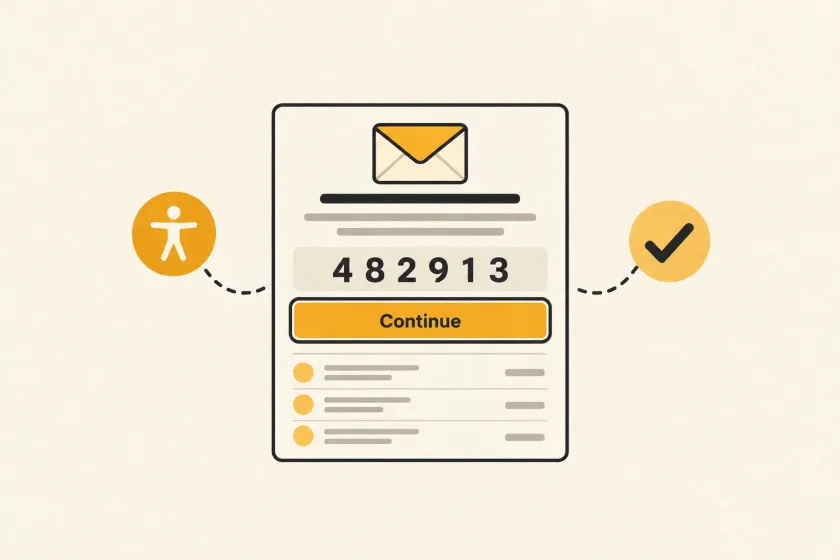
Render a one-time code as real text, not an image. Make it visually prominent without spreading its characters across unrelated elements. Test copying the entire code from the delivered email into the application’s input.
An illustrative content block might say:
Confirm your email for Cedar Scheduling

Your verification code: 482913

Enter this code on the confirmation page you opened.
This code expires 10 minutes after it was requested.
If you did not request it, you can ignore this email.
The code and timing above are fictional examples, not a prescribed security policy. The application should supply the actual expiry rule, and the wording should stay accurate when delivery is delayed. If your system invalidates previous codes after a resend, say so clearly in the interface.
Avoid including a usable code in the subject if your product’s privacy model does not allow secrets on lock screens. Accessibility and security decisions need to work together. The verification-flow guide covers the surrounding application behavior.
Give structure a purpose
Use headings when they help people navigate the message, particularly for longer receipts or account notices. Keep the hierarchy consistent. Short confirmation messages may need very little structure beyond a clear opening and action.
Declare the content language, and ensure it remains available in the part of the HTML retained by your target clients. For localized messages, derive the language from the content you actually send. A translated template with a hard-coded English language declaration defeats that work.
Distinguish layout tables from data tables. A table used only to position a logo and button should be presentational. A receipt’s line-item table contains relationships readers need, so keep its headers and table semantics. Marking every table as presentation indiscriminately removes useful information.
For a receipt, test whether a screen reader can associate a price with the right item. If a complex layout makes that difficult, a simpler stacked item list may better serve the message.
Choose image text by function
Ask what an image contributes in its particular context. A decorative divider can have empty alternative text. A linked logo may need text that describes the destination or identity. If a chart contains essential information, provide that information in nearby text rather than hiding it inside a long image description.
These decisions follow the distinction between decorative, informative, and functional images in the W3C image decision tree. The point is not to describe every pixel; it is to preserve what the reader needs from the image.
Run an images-off review. The company name, order total, verification code, and primary action should remain present. A template that becomes an empty rectangle needs a content change, not another image export.
Test contrast and enlargement together
WCAG’s minimum contrast criterion calls for a ratio of 4.5:1 for ordinary text and 3:1 for qualifying large text. See the W3C explanation for the definitions and exceptions. These are useful design targets when selecting email colors.
Check the rendered message as well as the original color values. Review the button label, muted explanatory text, links, and any totals that use a different background. Include dark mode in the client combinations your recipients commonly use.
Enlarge text and narrow the viewport. Look for clipped codes, overlapping labels, fixed-height buttons, and horizontal scrolling. Do not assume that a responsive browser preview proves the delivered email behaves the same way.
Add a task-based review to template changes
Use a small, repeatable review sequence before releasing a shared component:
- Read the plain-text version and complete the intended task.
- Disable images and confirm essential information remains.
- Enlarge text and inspect the narrowest supported layout.
- Navigate with a keyboard where the client supports it.
- Listen to the message in a screen reader and follow the primary link.
- Send through the production rendering path to representative test inboxes.
Keep a record of the client, assistive technology, and template version tested. Automated checks can find missing attributes, but a human task review catches confusing order and ambiguous copy.
SendMero’s API and SMTP can carry the resulting messages; the accessible structure belongs in your templates. Use the integration documentation and apply the same review to every template version, including those used in onboarding sequences.